How to Uninstall and Reinstall Xbox Game Bar on Windows 11

The Xbox Game Bar on Windows helps you manage games and apps easily. It works with most controllers, like the standard Xbox controller or the Elite Series 2. You can also change the default theme to make it work the way you want.
Why do this?
Sometimes the Game Bar stops working correctly. It might freeze or fail to open. Removing and reinstalling it is a great way to fix these glitches and get back to your games.
What happens when done?
Once you finish, the Game Bar will be removed or reset to its original state. You will have a fresh, working version of the app ready for your next gaming session.
Uninstall the Xbox Game Bar
To remove the app, you will need to use the Windows Terminal.
- Open the Windows Terminal app.
- Copy and paste the following command into the window and press Enter:
Get-AppxPackage -PackageTypeFilter Bundle -Name "*Microsoft.XboxGamingOverlay*" | Remove-AppxPackage- Restart your computer to finish the process.
Note: If you want to remove it for every person who uses this computer, you must run the Windows Terminal app as administrator as an administrator. Use this command instead:
Get-AppxPackage -AllUsers -PackageTypeFilter Bundle -Name "*Microsoft.XboxGamingOverlay*" | Remove-AppxPackage -AllUsers
Reinstall the Xbox Game Bar
To get the app back, follow these steps:
- Click this Xbox Game Bar on the Microsoft Store to open the Microsoft Store page.
- Click the Get or Install button on the Microsoft Store app.
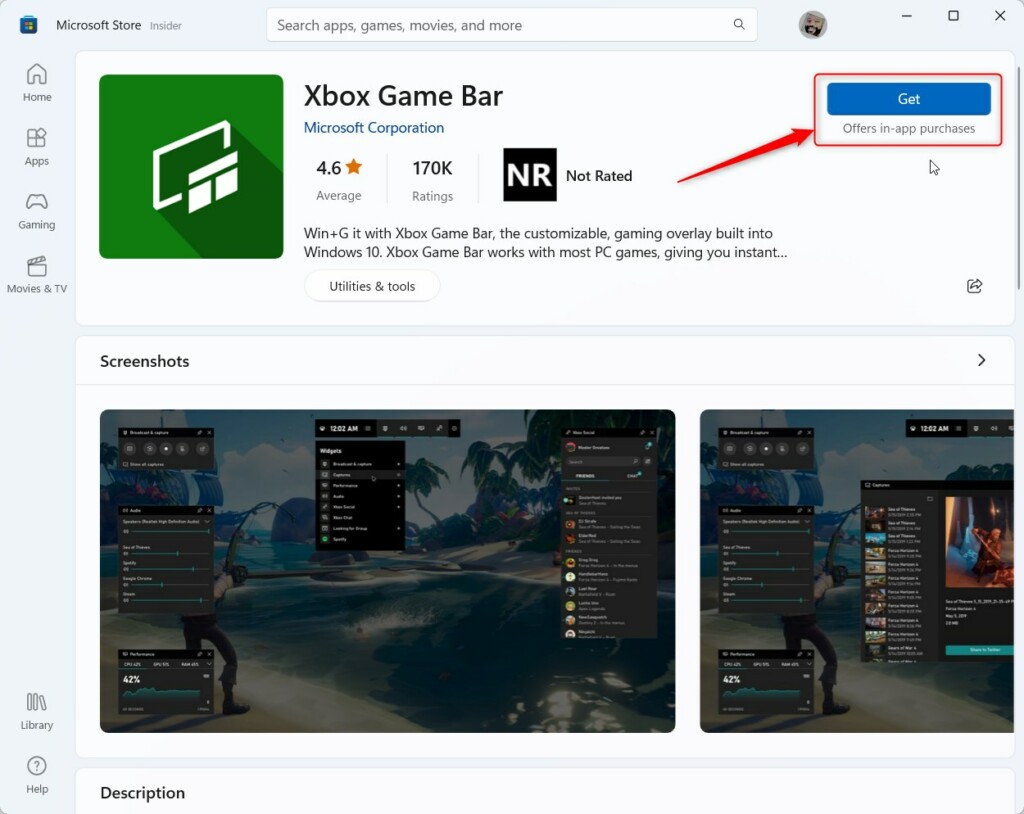
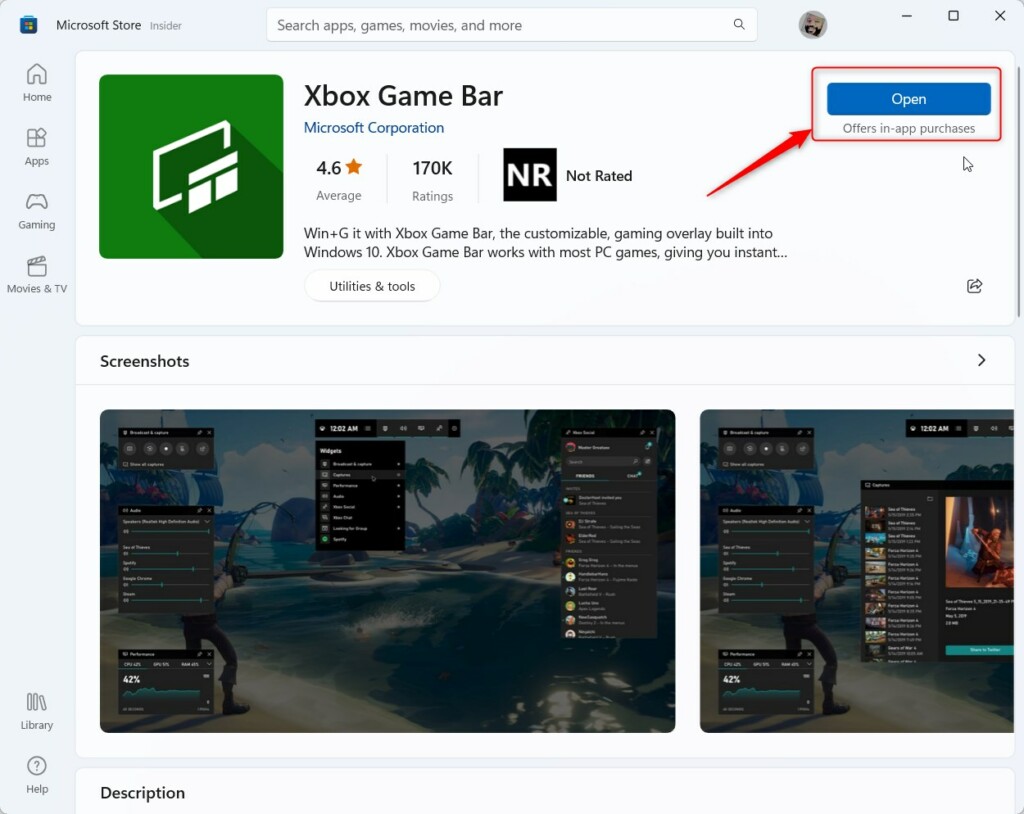
Once the download finishes, you can open the Game Bar from your Start menu.
Summary
The Xbox Game Bar is a useful tool for Windows gamers. If it stops working, you can use simple terminal commands to uninstall it. After a quick restart, you can easily reinstall it from the Microsoft Store to restore all its features.
Was this guide helpful?



The Xbox Game bar is not in the Microsoft store. So if you follow this and uninstall Xbox game bar every game will cause a pop up asking for the game bar and you get to reinstall windows.